
Generating a Contract Document with the Commercial Contracts Assistant
This tutorial shows how to use Talking Tree's Commercial Contracts assistant to draft a new legal document from a plain-language request, then add a related file to your Repository.
1. Open the Commercial Contracts Assistant
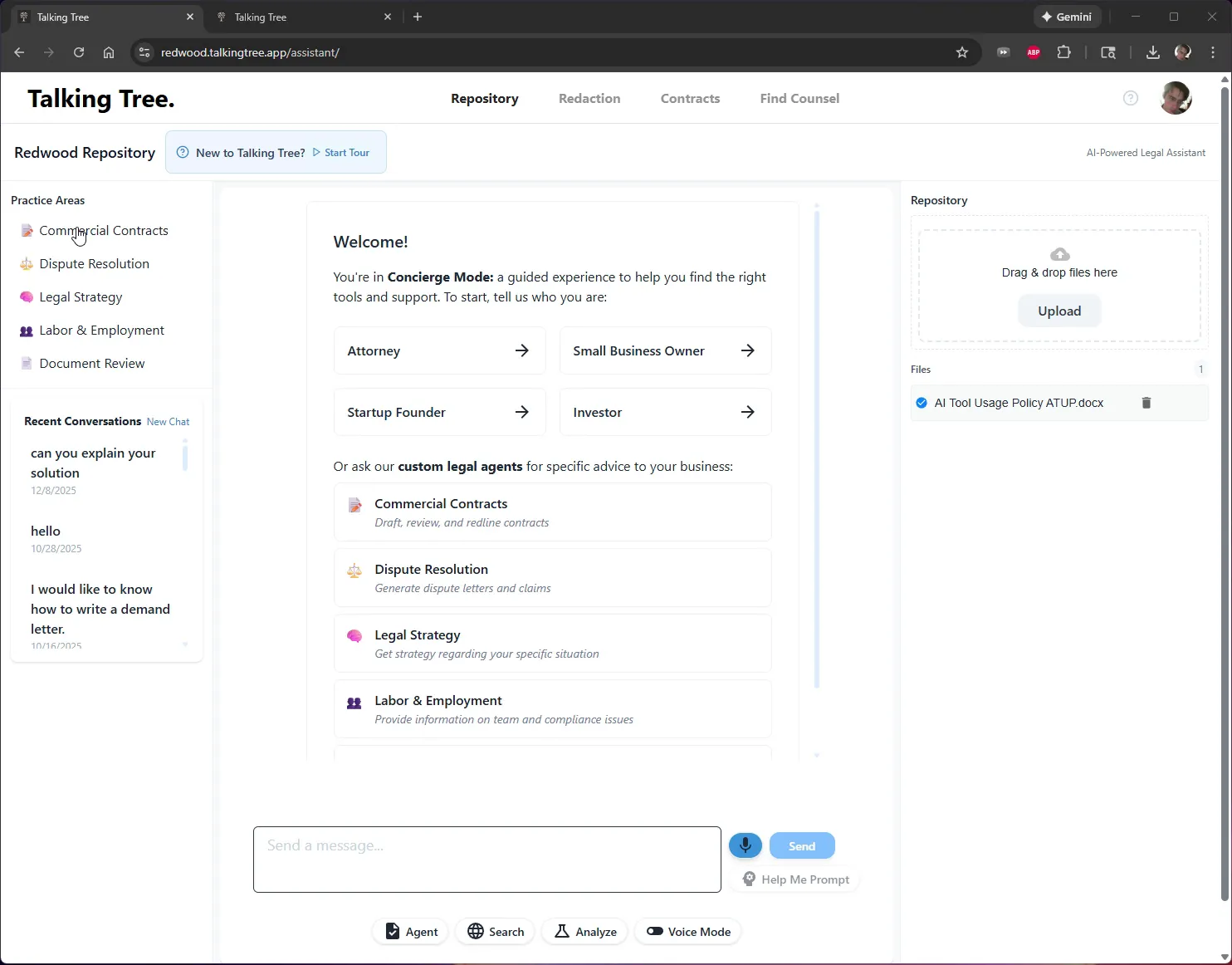
From the Redwood Repository home screen, click Commercial Contracts under Practice Areas to start a guided drafting session.
2. Review the Assistant's Intake Questions
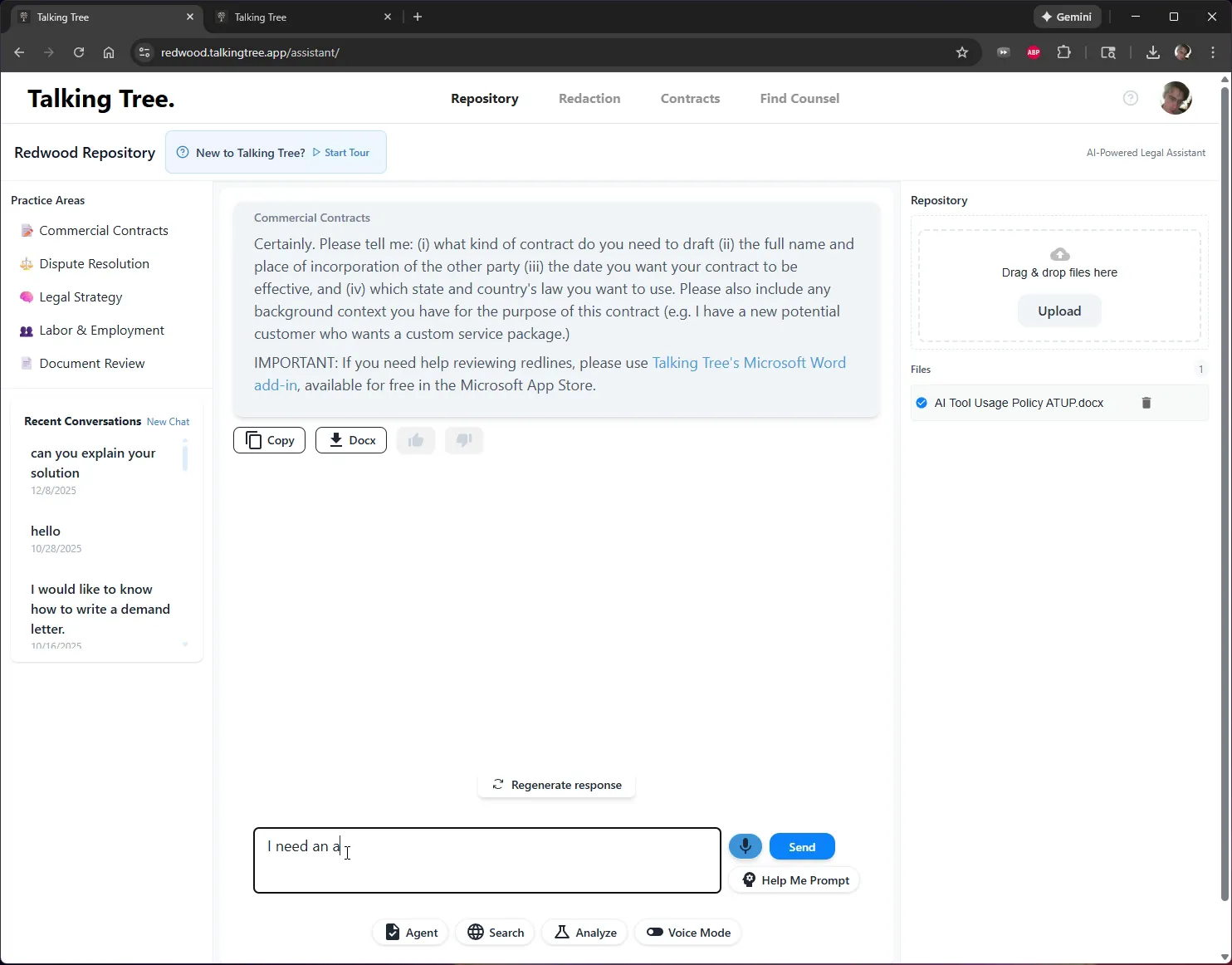
The assistant responds by asking for the details it needs to draft your document, such as the contract type, the other party's details, the effective date, and governing law.
3. Describe What You Need
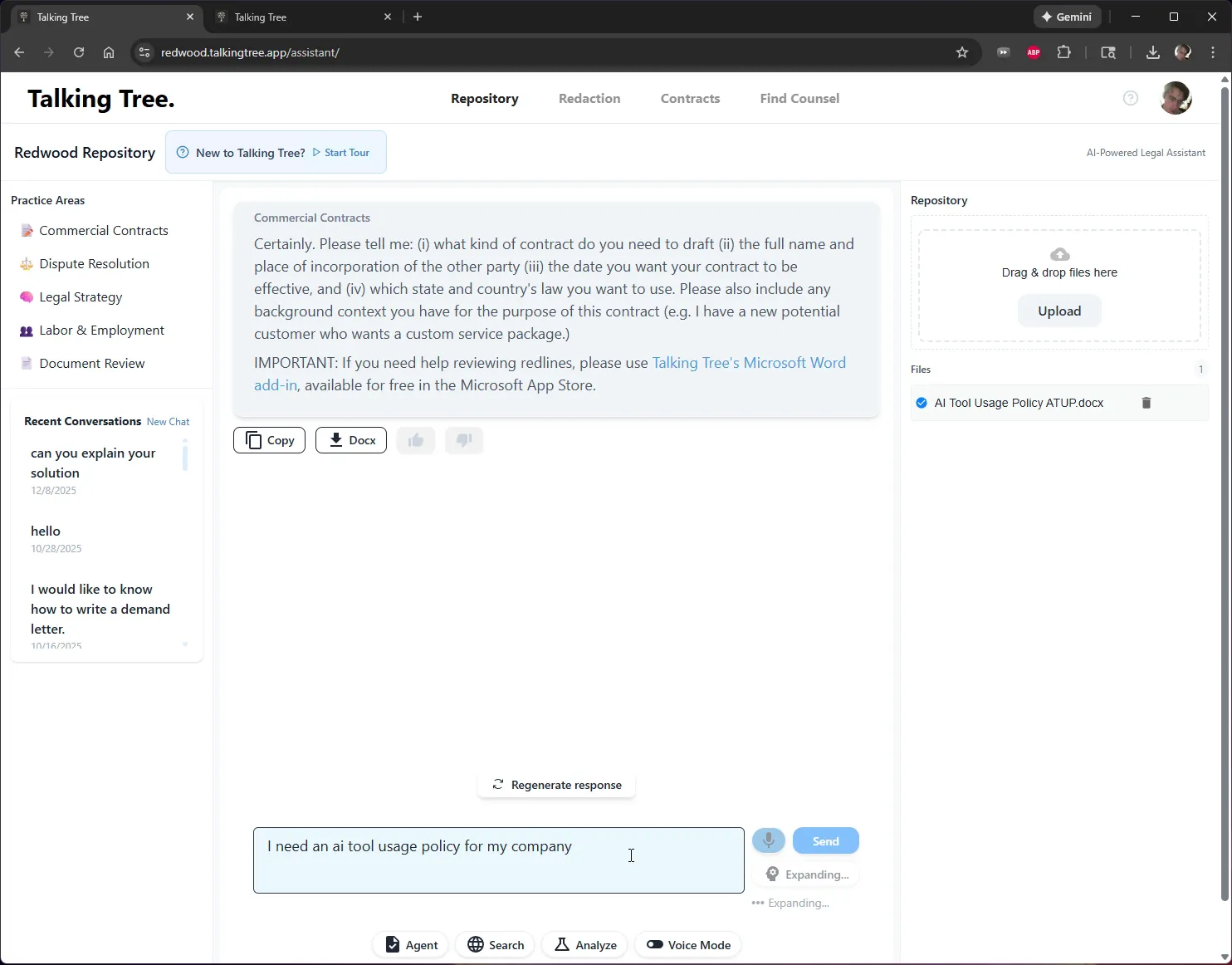
Type your request into the message box. For example, describe the document you need drafted, such as an AI tool usage policy for your company.
4. Submit a Detailed Request
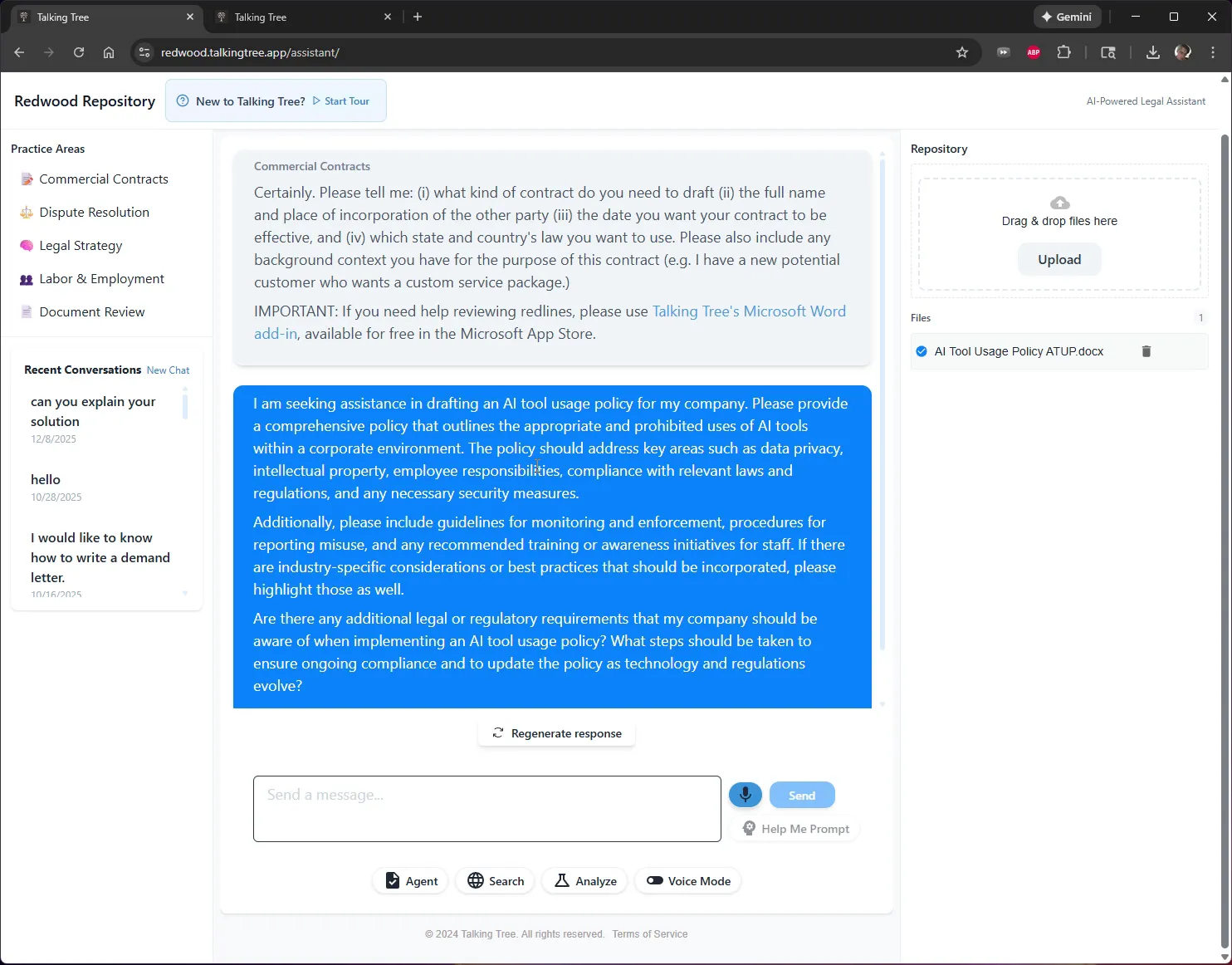
Expand on your request with the specific topics the document should cover, such as data privacy, intellectual property, employee responsibilities, and compliance requirements, then click Send.
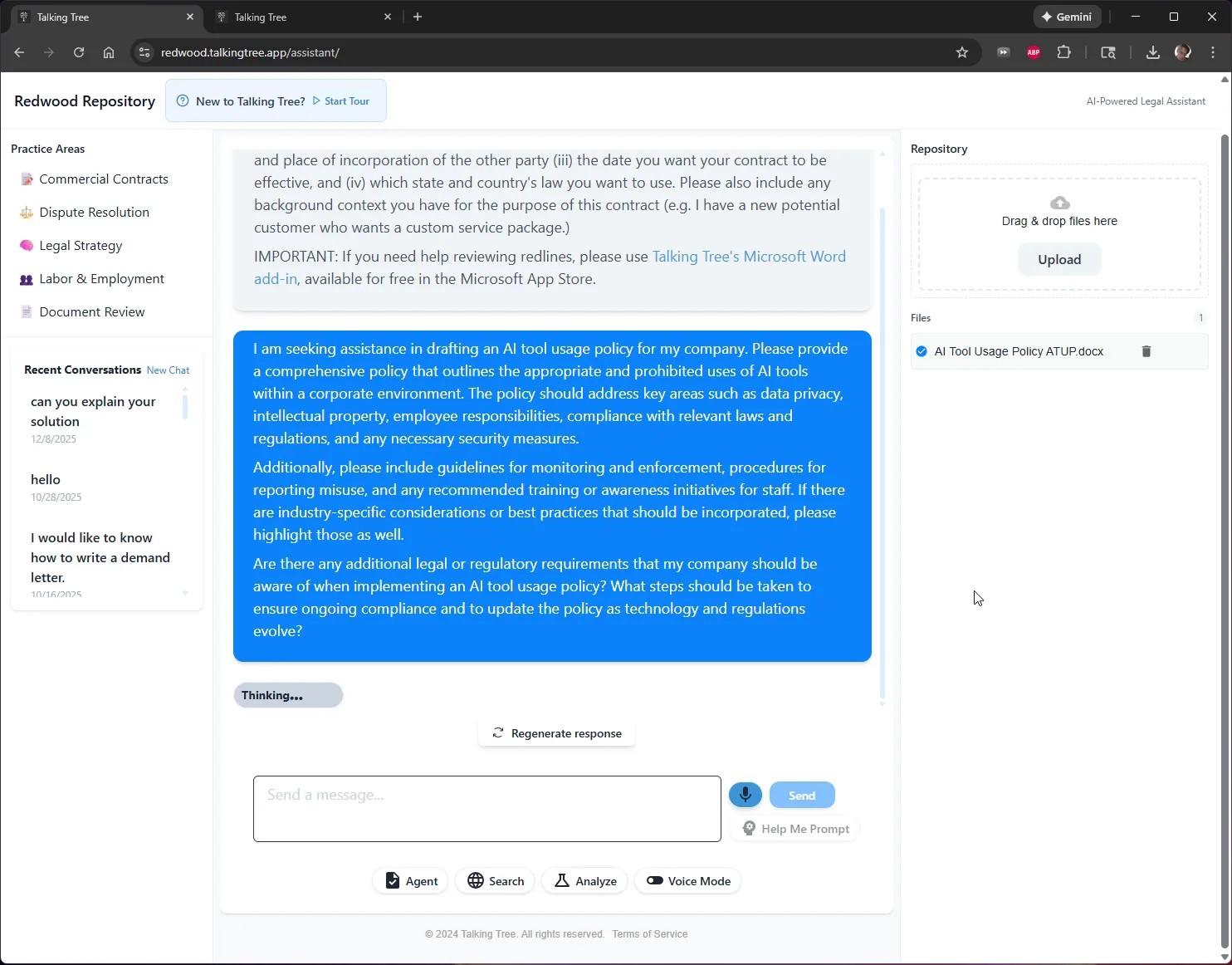
5. Wait for the Assistant to Process the Request
The assistant displays a Thinking indicator while it analyzes your request and prepares to draft the document.
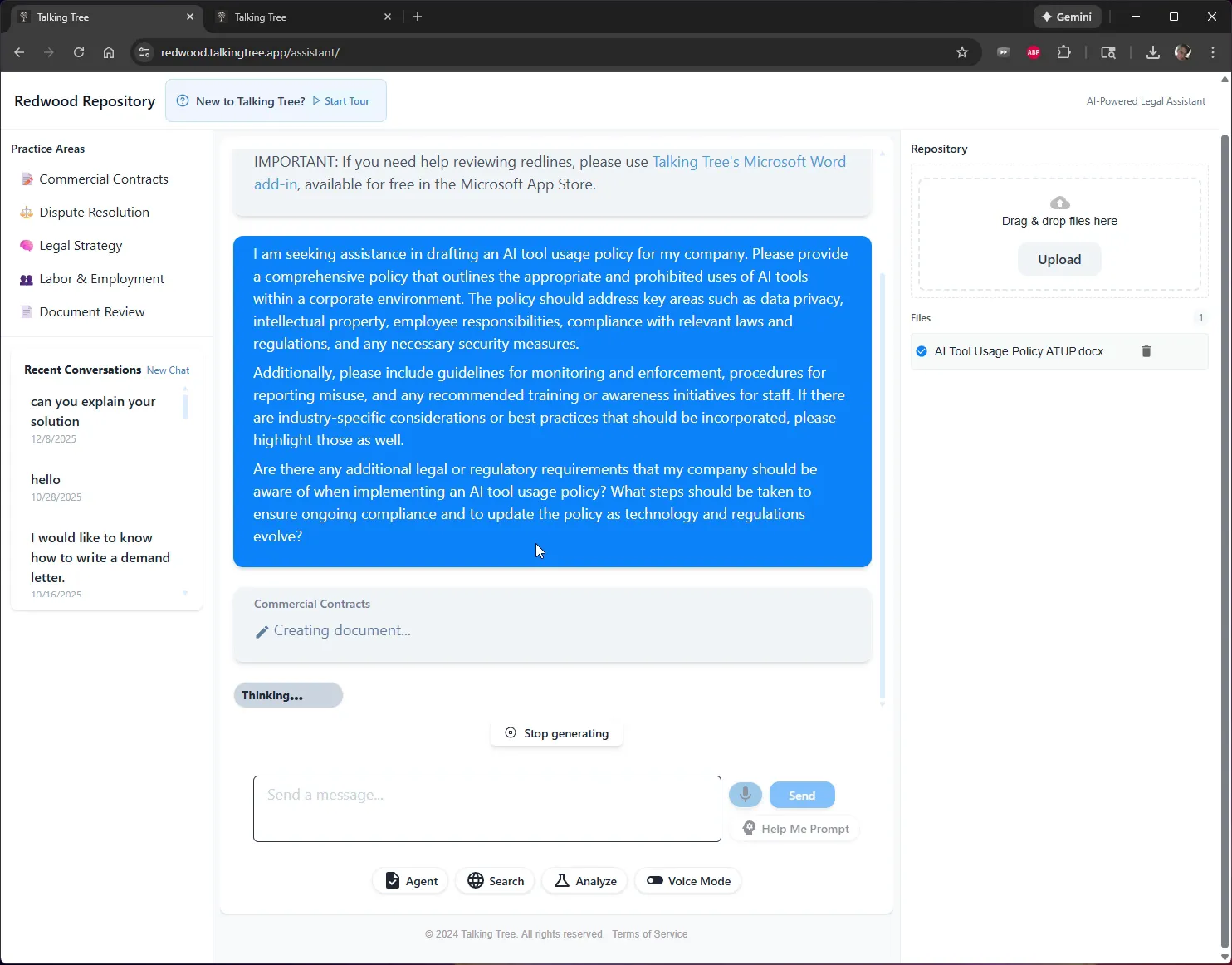
6. Watch the Document Get Created
A Creating document... status appears under the Commercial Contracts response as the assistant generates the requested file.
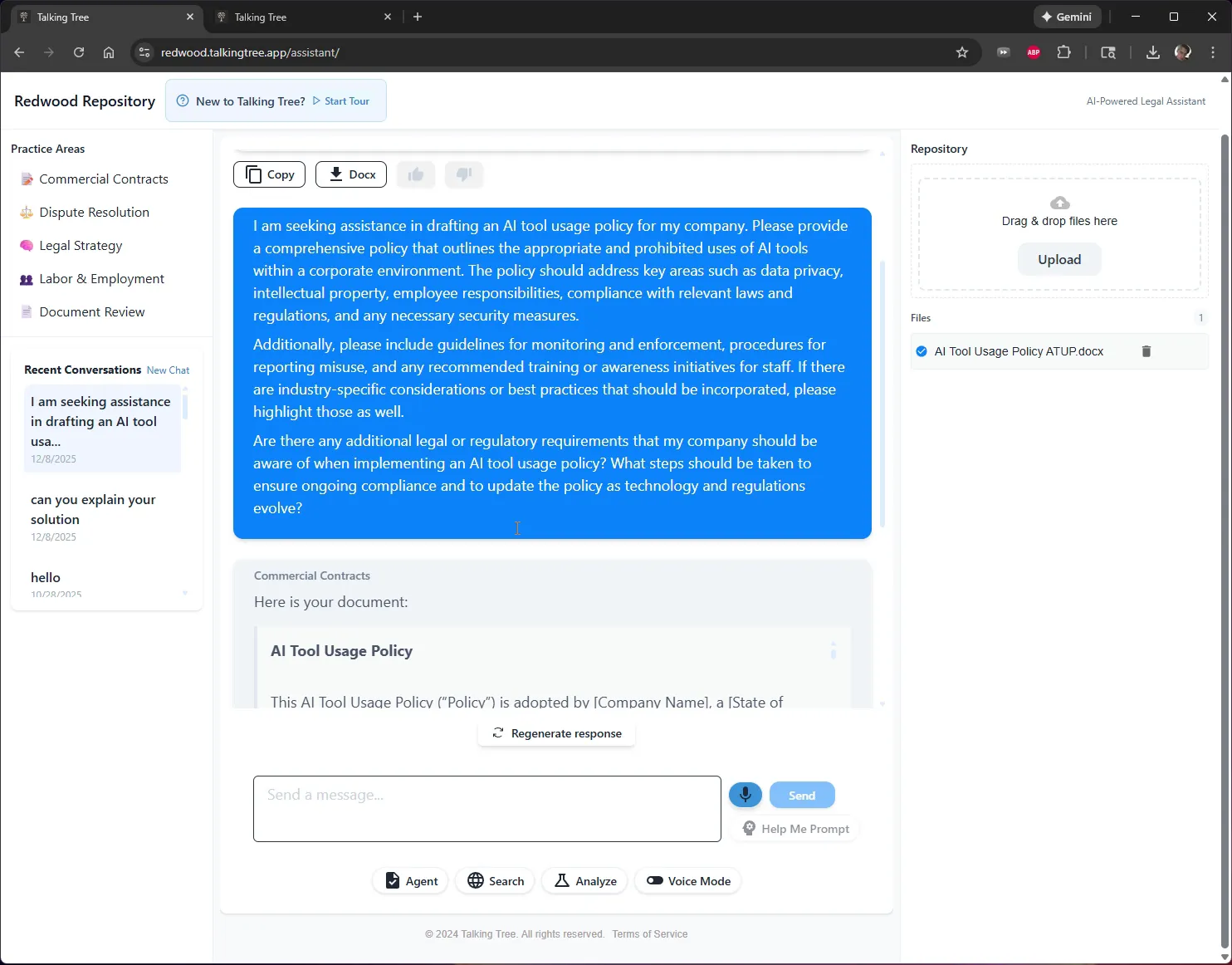
7. Review the Generated Document
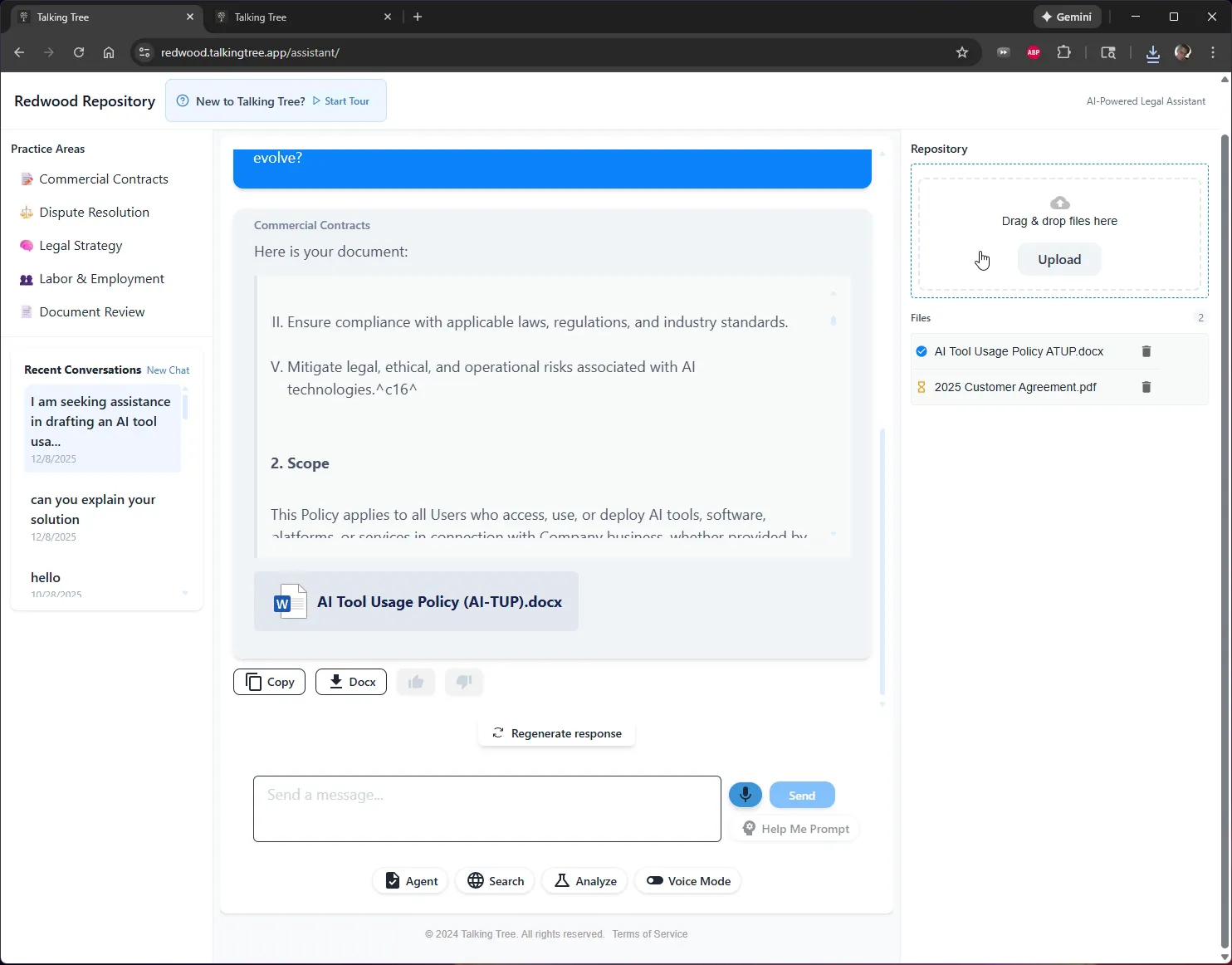
The assistant returns the drafted document inline in the chat, along with Copy and Docx options for exporting the text.
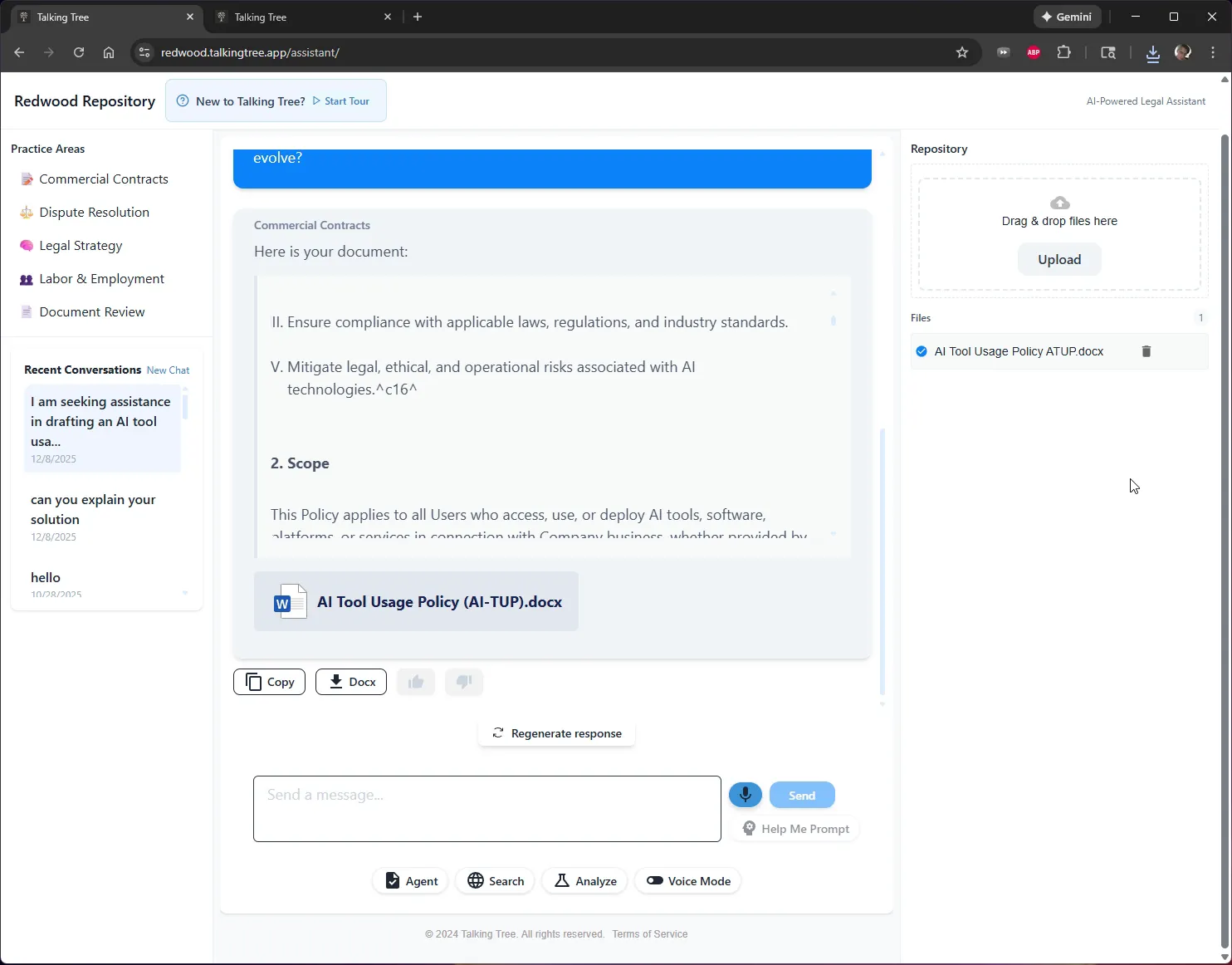
8. Scroll Through the Document Content
Scroll through the response to review the full document, including sections like Purpose and Scope, and confirm the attached .docx file is ready for download.
9. Upload a Related File to the Repository
Use the Repository panel on the right to drag and drop, or click Upload, to add a related file such as a customer agreement.
10. Confirm the File Was Added
The uploaded file appears in the Repository's Files list alongside any previously stored documents.
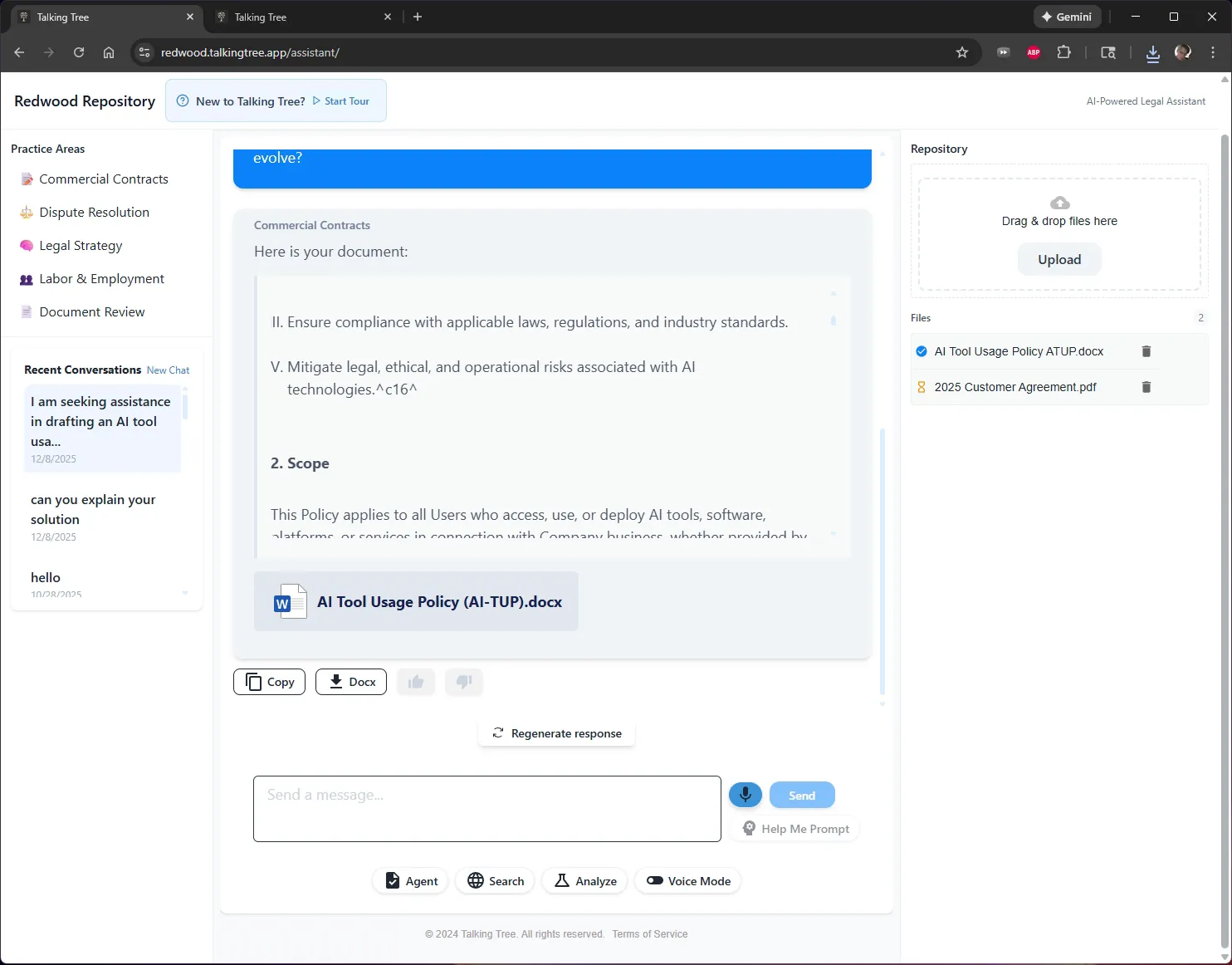
The Commercial Contracts assistant has drafted a new AI Tool Usage Policy from a plain-language request and the resulting files are now organized together in the Redwood Repository.
You’re ready to put this workflow into practice.