
How to Analyze Redlines with Talking Tree for Word
1. Open a Document with Tracked Changes
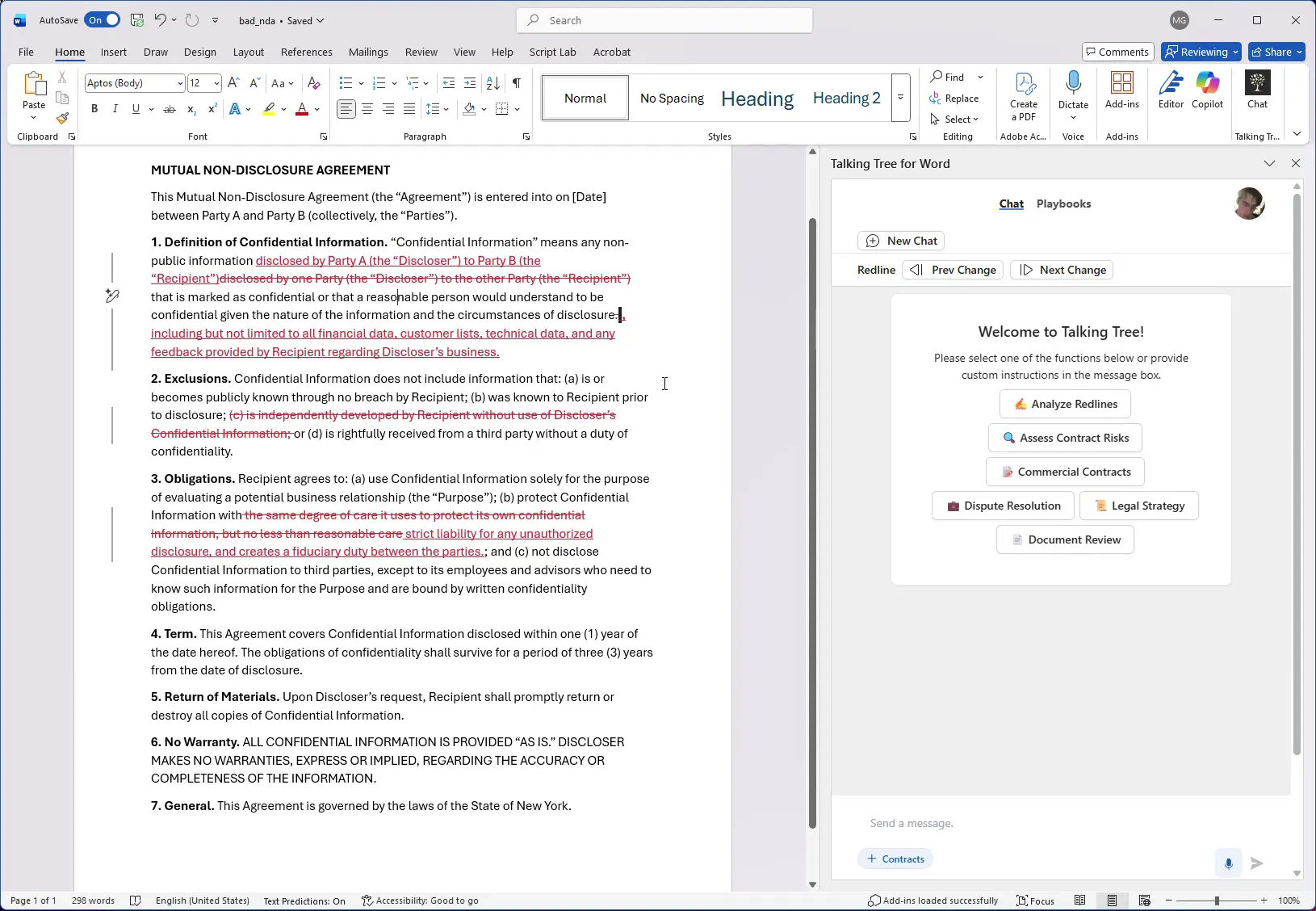
Open a Word document containing tracked changes (redlines), such as a negotiated NDA. Launch the Talking Tree for Word add-in panel from the ribbon so it appears alongside your document.
2. Click Analyze Redlines
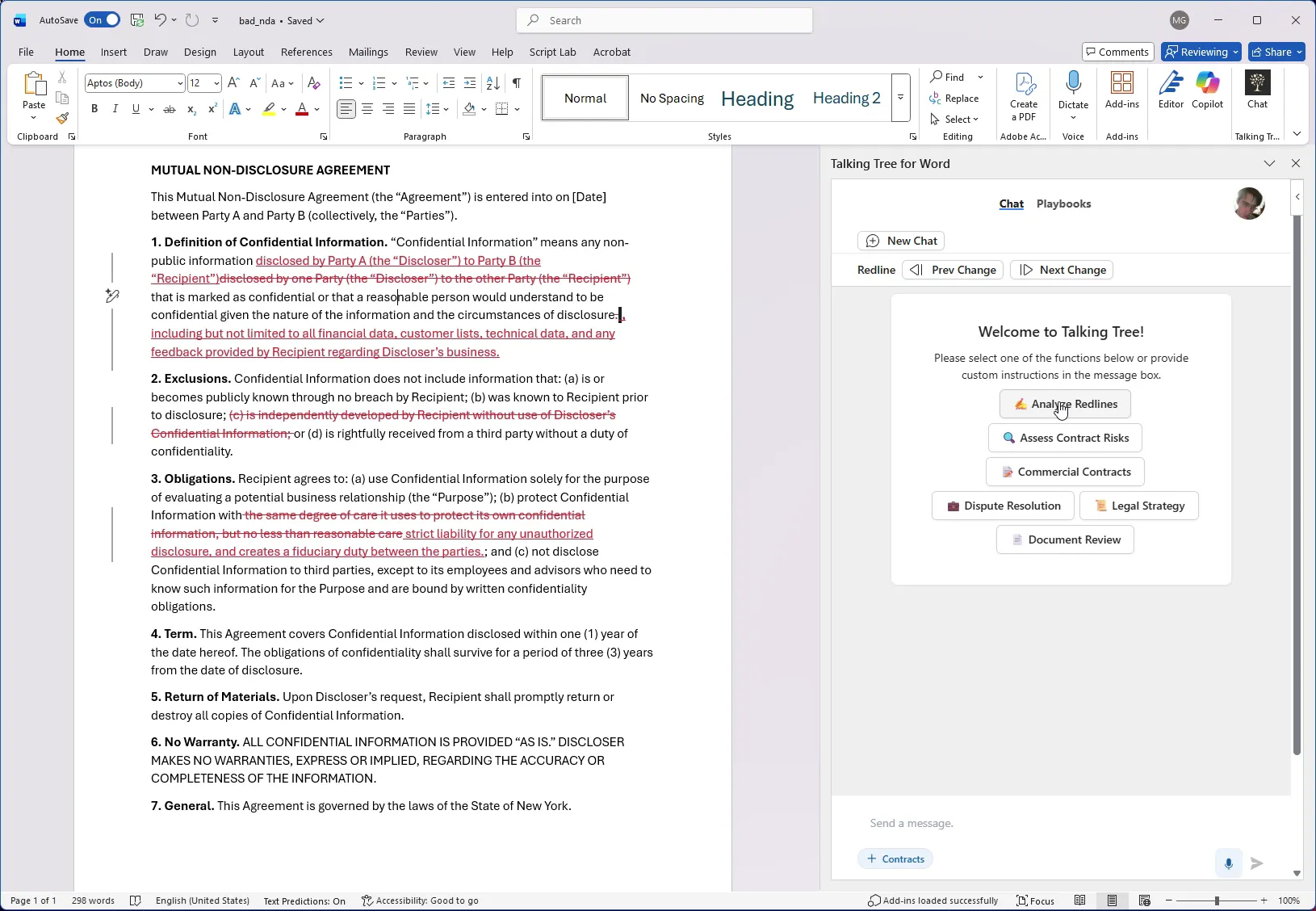
From the Talking Tree welcome screen, click Analyze Redlines to have the assistant review every tracked change in the document.
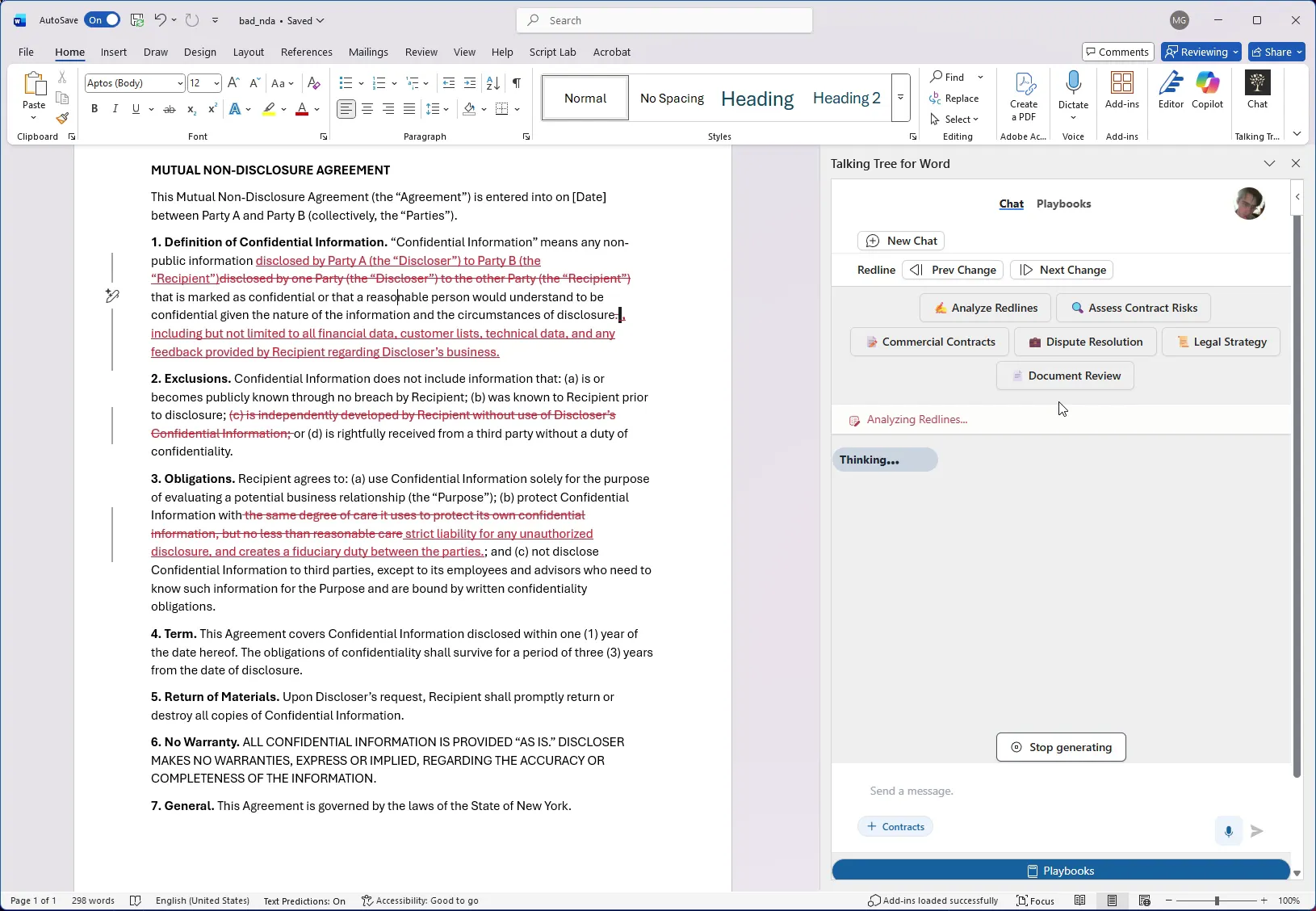
3. Wait for the Analysis
Talking Tree scans the document's tracked changes and begins generating its review. A Thinking... indicator shows the analysis is in progress.
4. Review the First Redline Finding
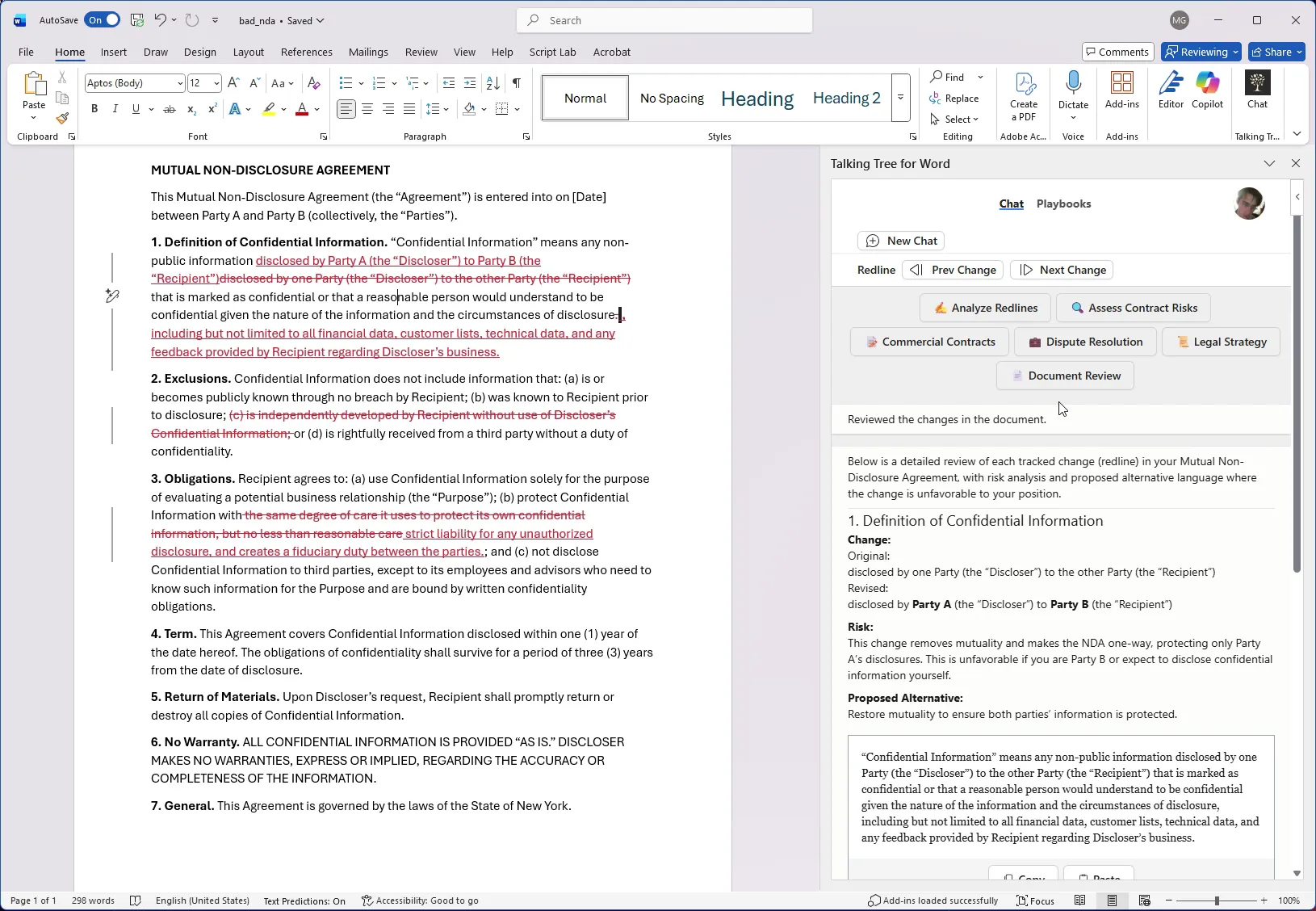
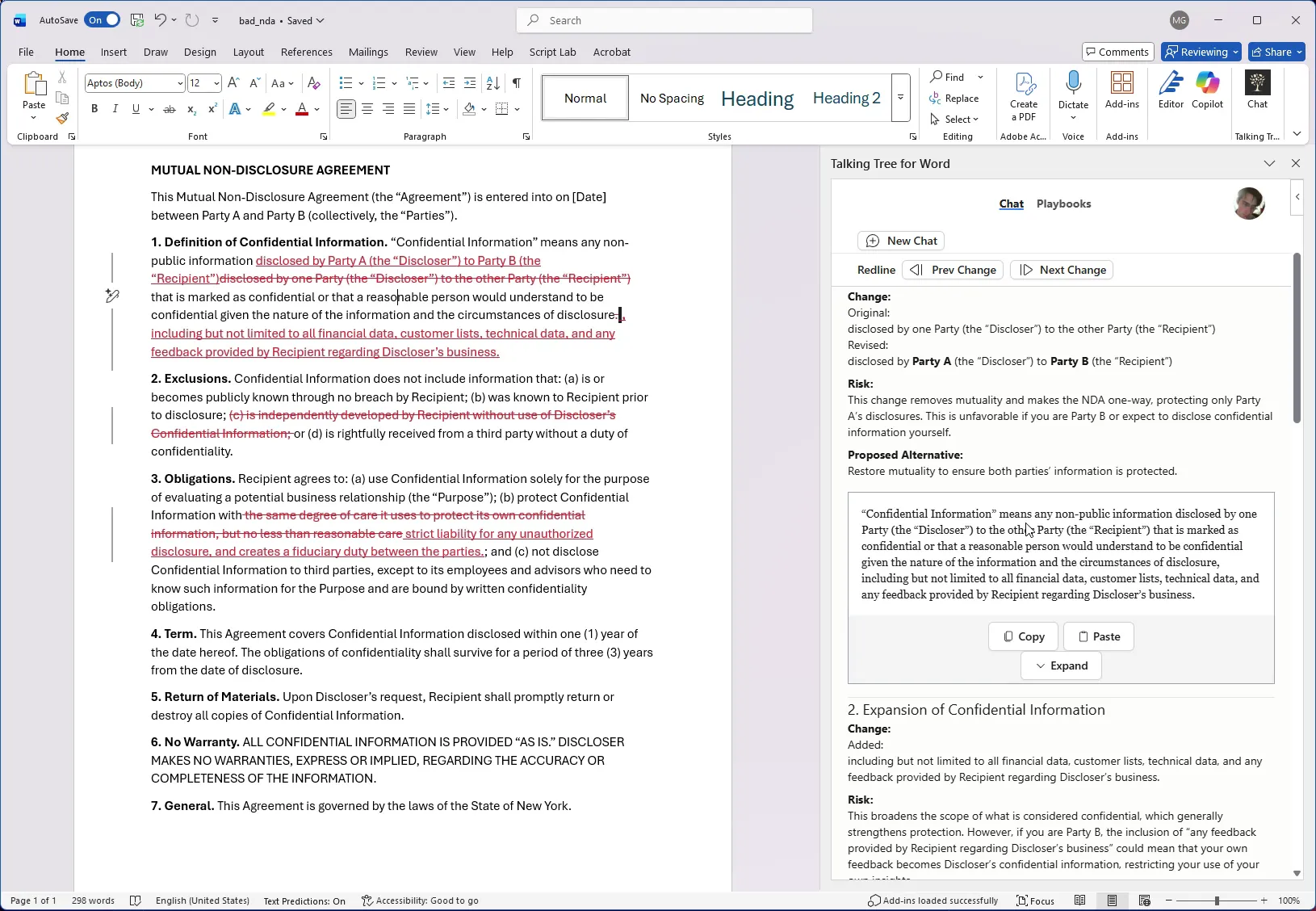
Read the first change breakdown, which shows the original and revised text, an explanation of the risk the change introduces, and a proposed alternative clause you can copy into the document.
5. Review Additional Changes
Scroll through the remaining findings, such as expanded or deleted defined terms, each with its own risk explanation and suggested alternative language.
6. Review Higher-Risk Changes
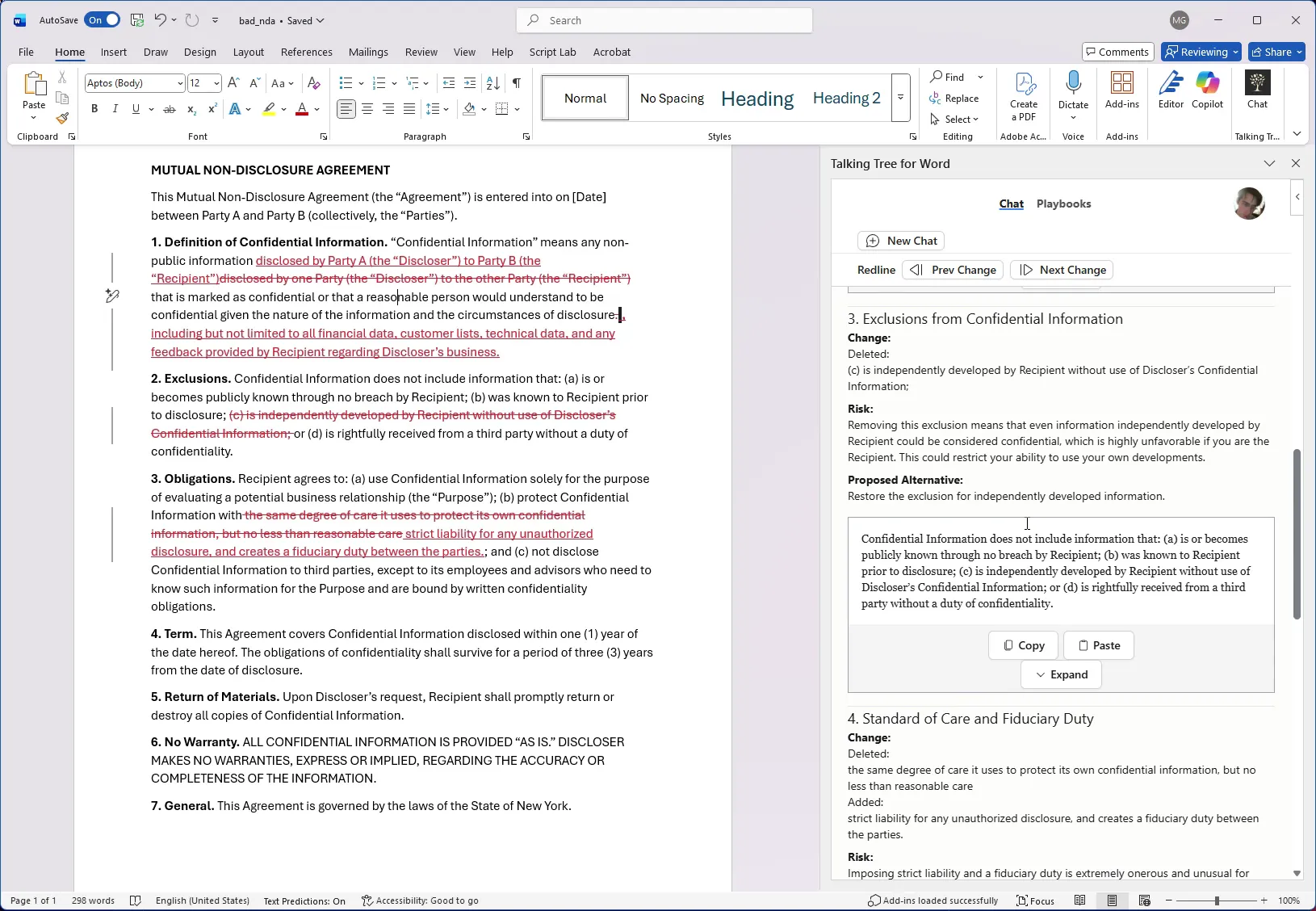
Pay close attention to changes flagged as higher risk, such as a shift from a reasonable-care standard to strict liability and fiduciary duty, along with the recommended fallback language.
7. Review the Summary Table and Recommendation
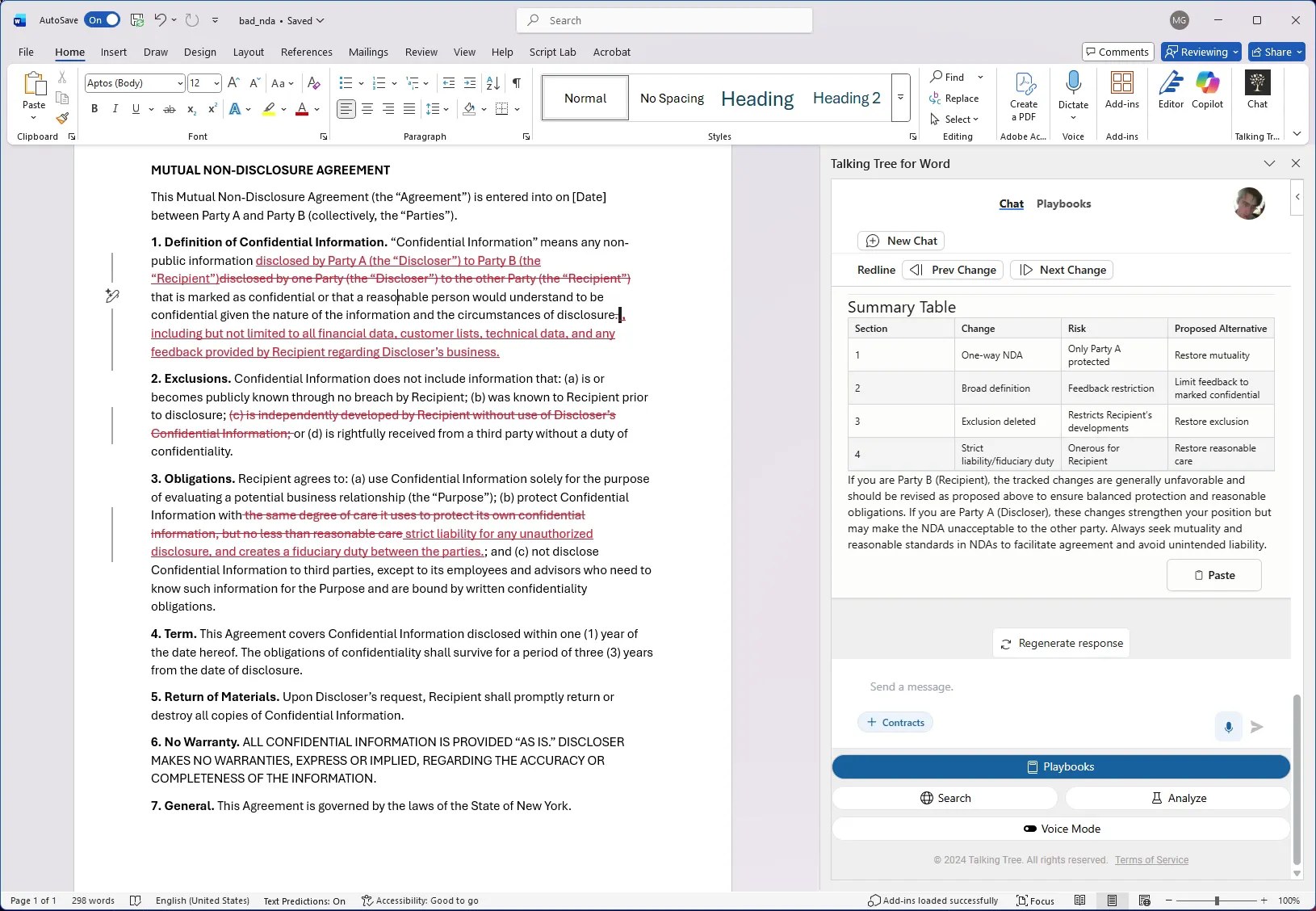
Scroll to the Summary Table at the end of the analysis for a consolidated view of every section, its change, risk, and proposed alternative, plus an overall recommendation based on which party you represent.
Following these steps lets you use Talking Tree for Word to automatically analyze every tracked change in a contract, understand the risk each change introduces, and get ready-to-use alternative language before responding to the redline.
You’re ready to put this workflow into practice.