
Redlining a Contract with Redwood
Hand Redwood a contract that already contains the other side's tracked changes and get back a reasoned counter-redline, right inside your Repository.
This contract redlining tutorial uses a commercial lease as the sample contract because it contains the same kinds of negotiated clauses, risks, and tracked changes found across many business agreements. The workflow is not limited to leases.
Use the same AI contract review and redlining workflow for an MSA, NDA, vendor agreement, services contract, term sheet, or another contract already in your Repository. Redwood reads the full document, identifies changes that work against you, and proposes replacement language with an explanation for each edit.
1. Open the file in your Repository
Every document you've uploaded lives in the Repository panel on the right. Click Folder/File and pick the one you want reviewed.
A chip above the message box confirms which file Redwood is working from, so you can refer to the document without describing it again.
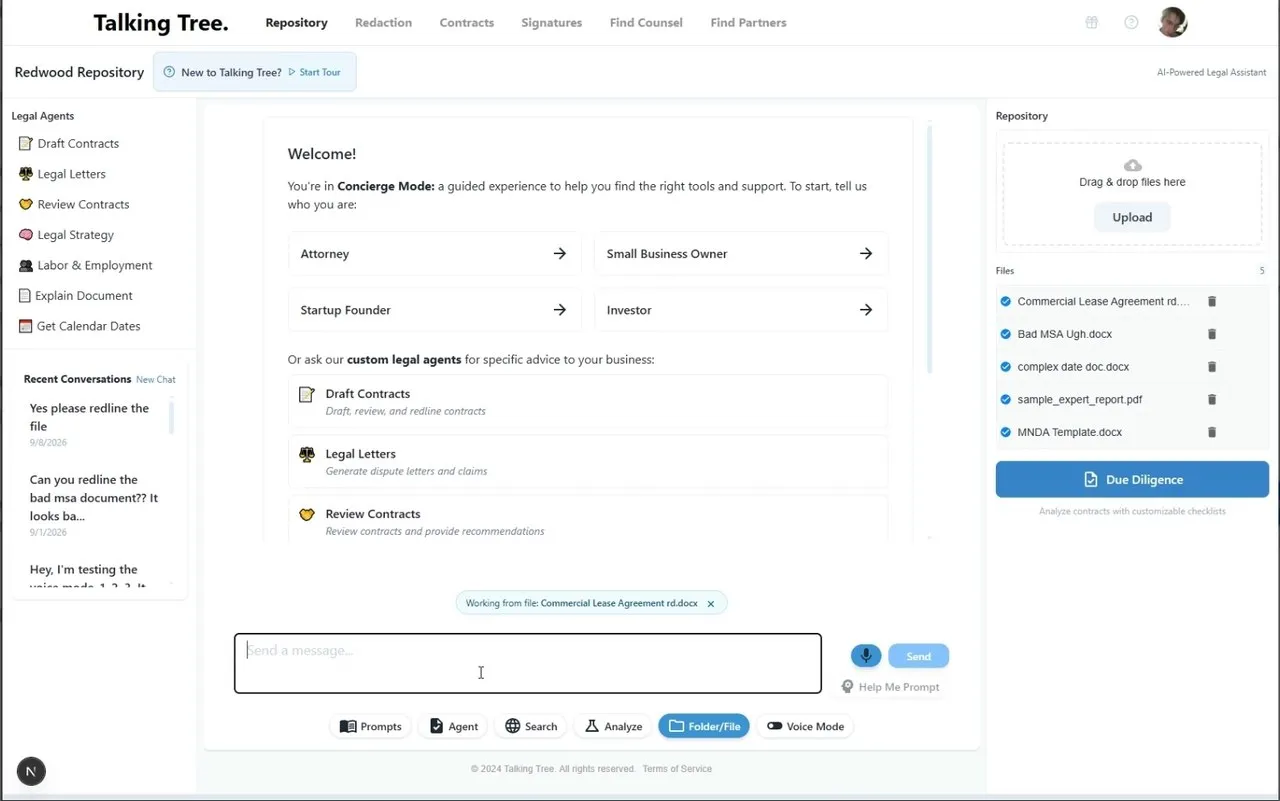
2. Ask in plain language
Type what you want done. In this example: “Can you review their changes and redline it for me?”
Redwood already knows which file you mean from the chip, so there is no context to repeat and nothing else to attach.
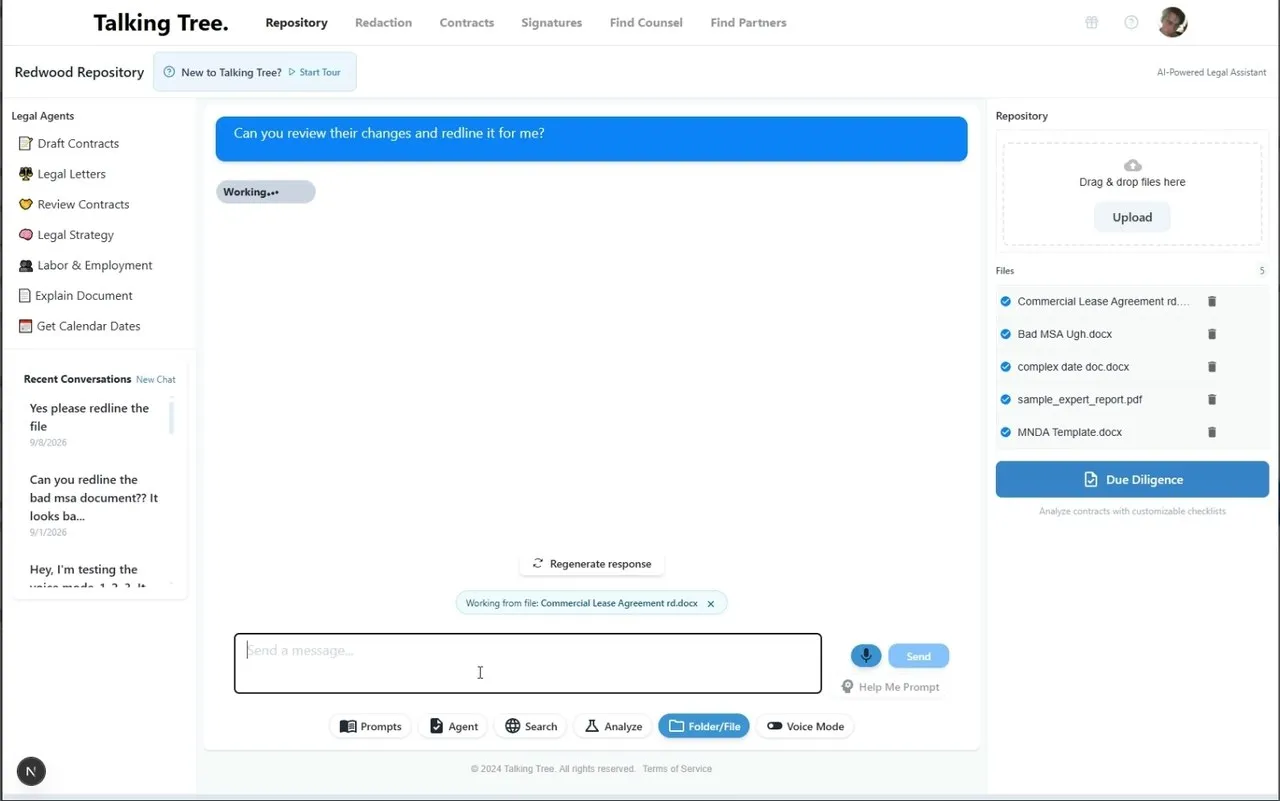
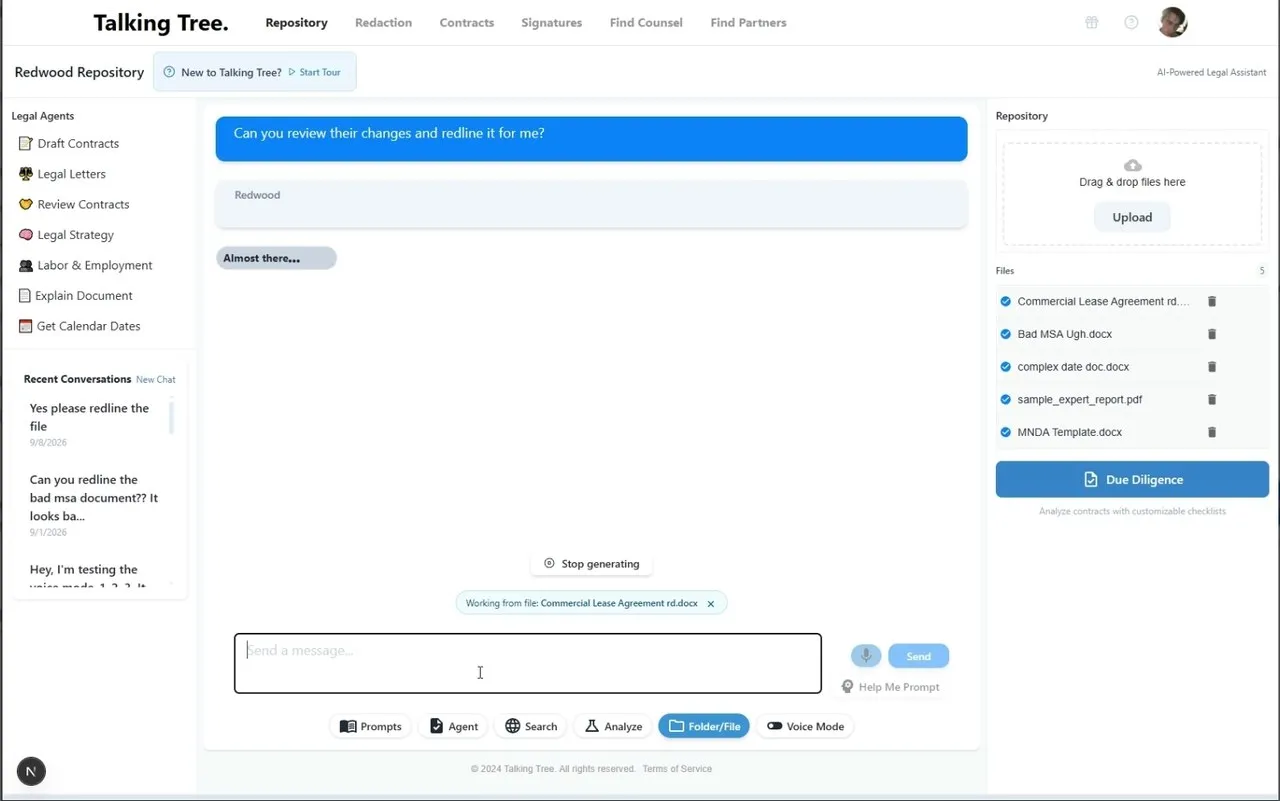
3. Let Redwood review the whole contract
You'll see a short reading state while Redwood performs its contract review across every page. It identifies clauses and tracked changes that cut against you before drafting a counter-redline instead of reacting line by line.
For a lease this length, that takes well under a minute.
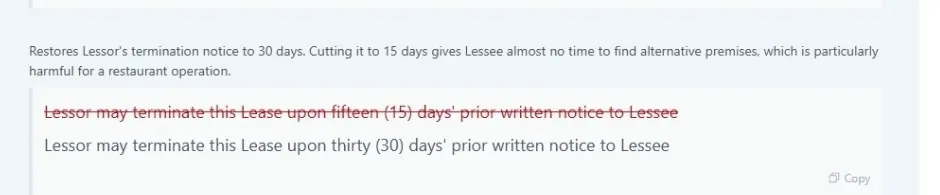
4. Review each contract redline and its reasoning
Each proposed contract change has three parts: a plain-language note explaining why the clause matters, the original wording struck through, and Redwood's replacement underneath it.
You can copy any single redline from the chat if you only want to use one without applying the rest.
5. Download the counter-redlined contract
When Redwood finishes, it returns a counter-redlined Word contract with every edit applied as a real tracked change—the kind opposing counsel can open and review normally in Microsoft Word.
It also tells you how many edits it made and confirms that the original upload was not changed. Redwood edits a copy.
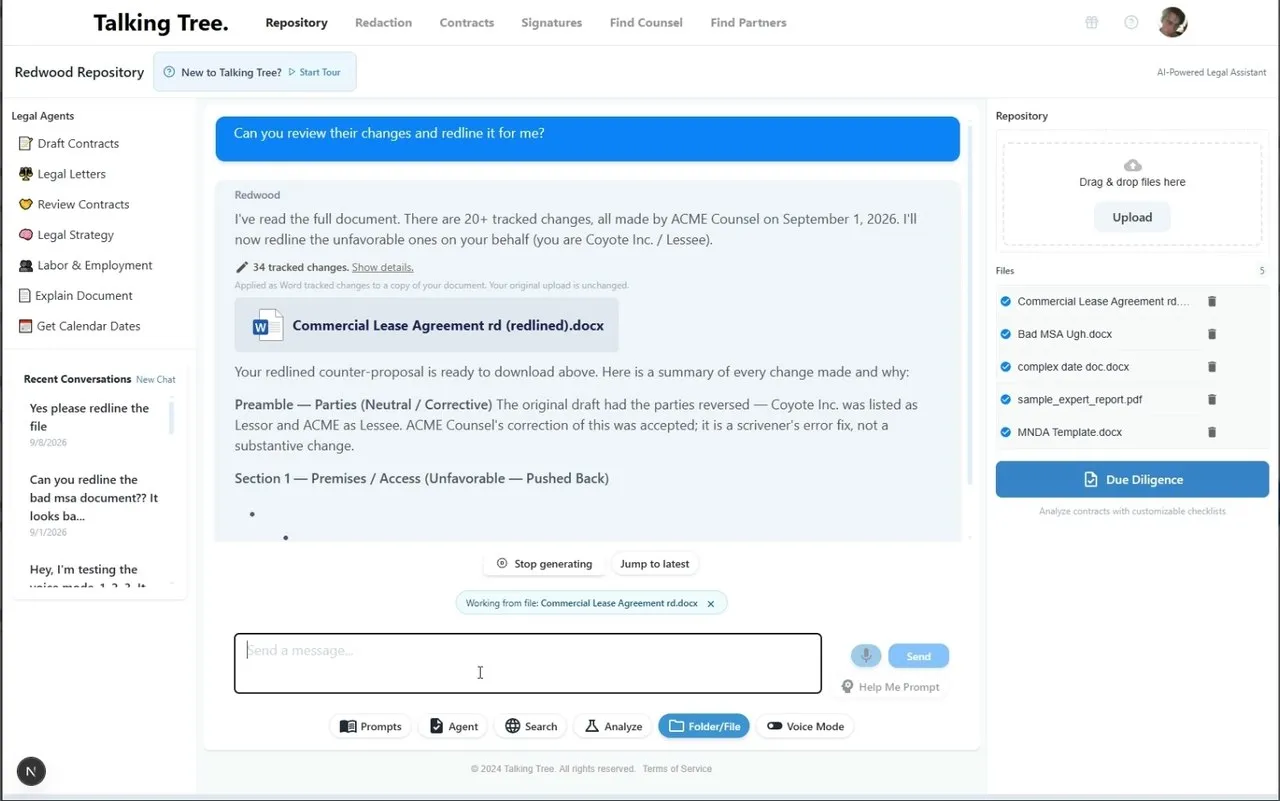
6. Read the section-by-section explanation
Below the file, Redwood explains what changed and why, organized by section of the lease. Each edit is labeled by type so you can see where to focus your own review.
A scrivener's error, for example, is labeled differently from a clause that could materially affect the deal.
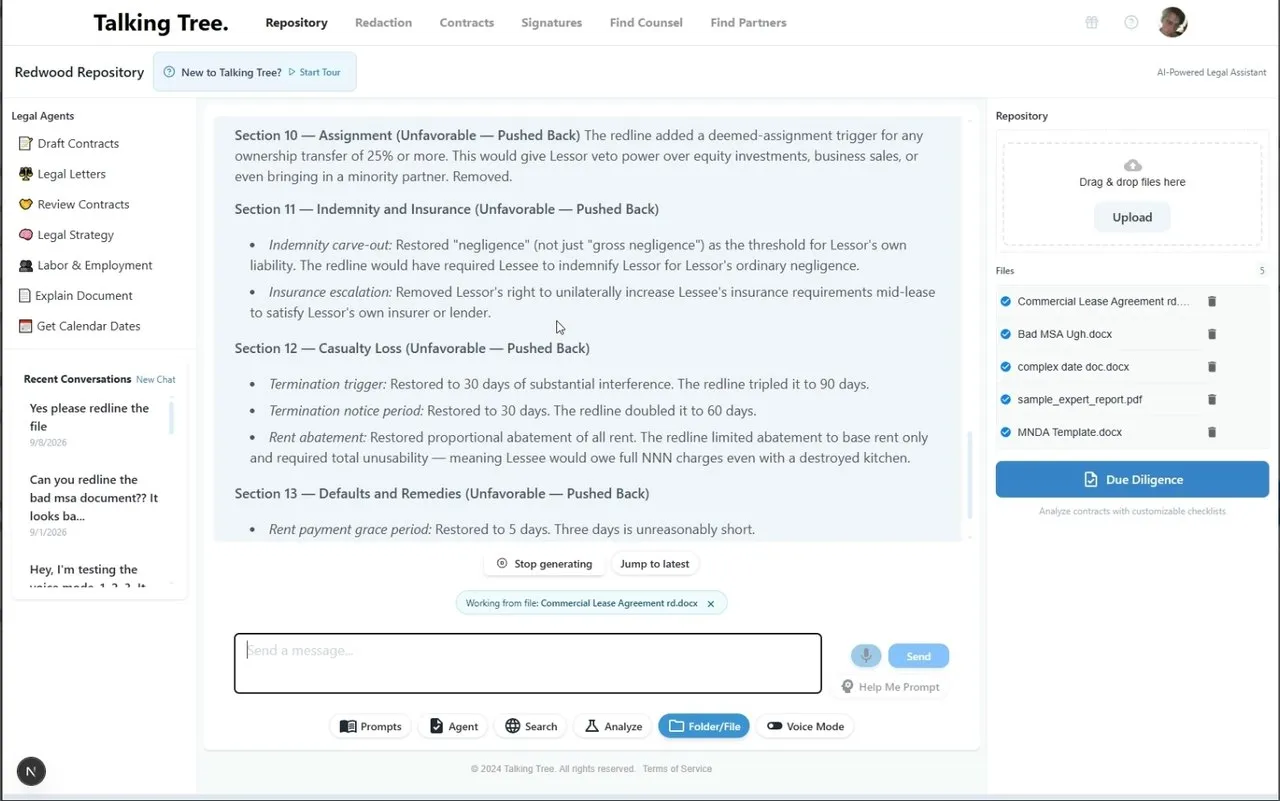
7. Return to the review whenever you need it
The conversation is saved under Recent Conversations. Reopen it to download the file again, ask a follow-up about a specific clause, or resume the review without starting over.
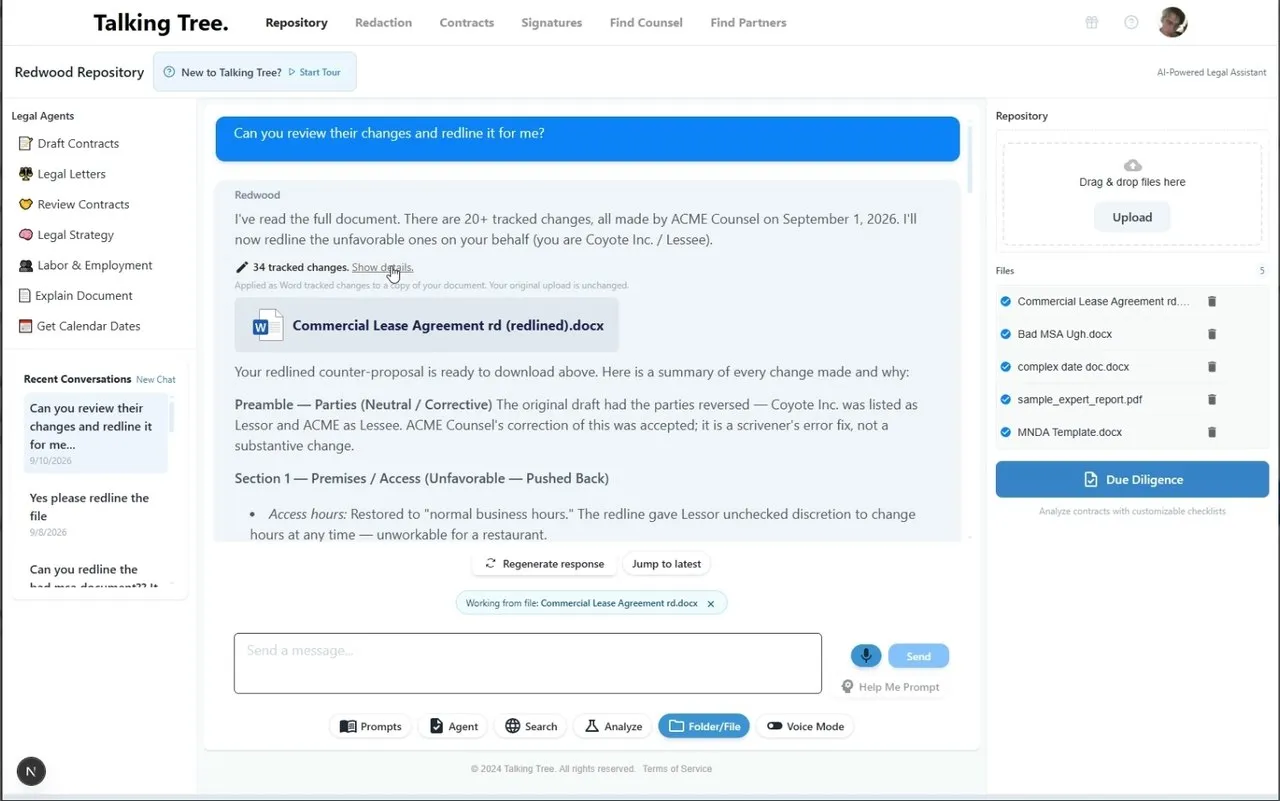
Does contract redlining with Redwood only work for leases?
No. This guide uses a commercial lease as a realistic sample, but the same workflow works with NDAs, MSAs, vendor agreements, services contracts, term sheets, and other business contracts.
What does Redwood return after reviewing contract redlines?
Redwood returns a copy of the contract as a Word document with real tracked changes, along with a section-by-section explanation of the proposed edits and their reasoning.
A few things worth knowing
- Your original upload is never edited. Redwood works from a copy and leaves the Repository file as it was.
- The commercial lease is only the sample contract. Use this flow with an MSA, NDA, vendor contract, services agreement, term sheet, or another Repository file.
- Redlines arrive as real Word tracked changes, so they are immediately usable by anyone else on the deal—even if they do not use Talking Tree.
You’re ready to put this workflow into practice.